Interface Tour
This guide will walk you through the main areas of the Flowlence Code interface.
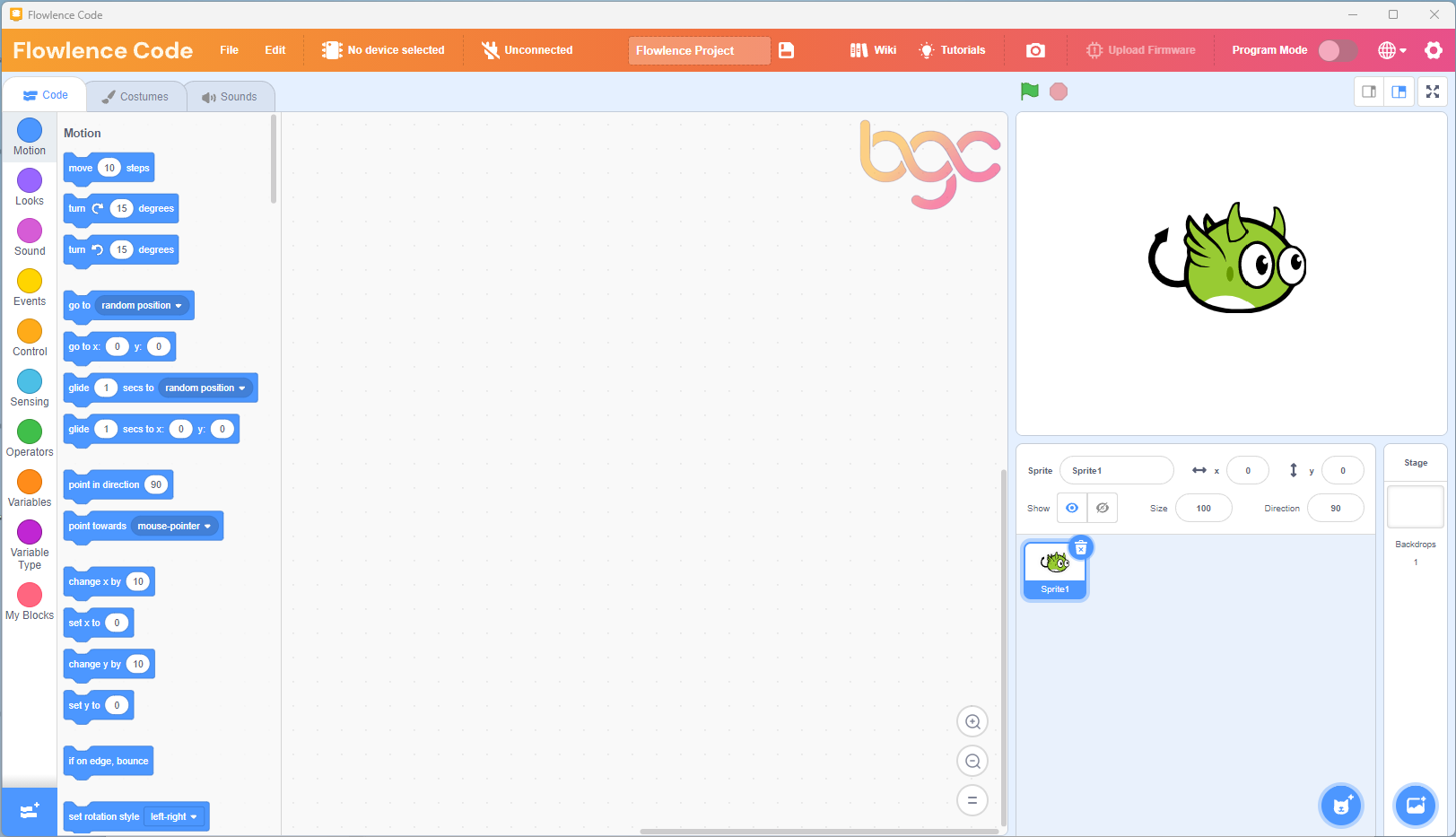
Main Areas
1. Menu Bar
The top bar contains:
- File - Save, load, and create new projects
- Edit - Undo, redo operations
- Device Selector - Choose your ESP32 board
- Connection Status - Shows if your board is connected
- Project Name - Click to rename your project
- Upload Firmware - Flash firmware to your ESP32
- Program Mode - Toggle between upload and real-time mode
2. Block Categories (Left Panel)
Blocks are organized into categories:
| Category | Description |
|---|---|
| Events | Starting blocks like "when Arduino begin" |
| Control | Loops, conditions, waits |
| Operators | Math and logic operations |
| Variables | Create and use variables |
| My Blocks | Custom blocks you create |
| Pins | Digital and analog pin control |
| Serial | Serial monitor communication |
| Data | Data types and conversions |
3. Workspace (Center)
This is where you drag and connect blocks to build your program.
- Drag blocks from the left panel into the workspace
- Connect blocks by snapping them together
- Right-click a block for options (duplicate, delete, help)
- Scroll to zoom in/out
4. Code Panel (Right)
Shows the Arduino C++ code generated from your blocks in real-time. This helps you learn text-based coding as you build with blocks.
5. Serial Monitor (Bottom Right)
Displays messages sent from your ESP32 using Serial Print blocks. Useful for debugging and reading sensor values.
Next Step
Now that you know the interface, let's write your first program!