Install Flowlence Code
System requirements
- Operating System: Windows 10 or later
- RAM: 8 GB minimum (16 GB recommended)
- Disk space: 8 GB free
- USB port: one free port for the ESP32
Download
Click below to download the latest Windows version directly. The download starts as soon as you click, with no extra page in between.
Download Flowlence Code (Windows x64)
You'll get an installer file named Flowlence_Code_win_x64.exe (~506 MB). It's a single download: the ESP32 compiler, USB drivers, and sensor blocks all ship inside, so you're ready to build every project in this tutorial as soon as it finishes installing.
Trial period
This is the BGC workshop trial of Flowlence Code. The app remains active through May 31, 2026, after which it will ask you to get the current version from Flowlence.
On a different platform?
Flowlence Code is Windows-only at the moment. Mac and Linux builds are on the roadmap. If you're on a Mac or Linux machine, your STEM teacher can help you find a Windows machine for the workshop.
Step 1 · Run the installer
Double-click the downloaded .exe to start the installer.
See a Windows SmartScreen warning?
Windows may show "Microsoft Defender SmartScreen prevented an unrecognised app from starting".
Click More info → Run anyway. SmartScreen shows this notice for any specialized software that isn't shipped through the Microsoft Store. The installer is safe.
Step 2 · Choose who can use it
Pick whether to install for all users (needs admin rights) or just you (no admin rights). For shared classroom computers, IT will usually choose all users; for your own laptop either is fine.
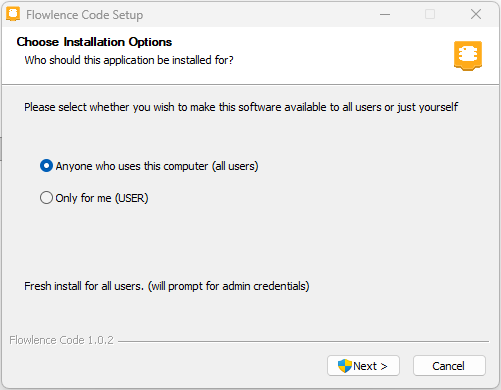
Click Next.
Step 3 · Choose the installation location
The default (C:\Program Files\Flowlence Code) works for most people. Click Install to start.
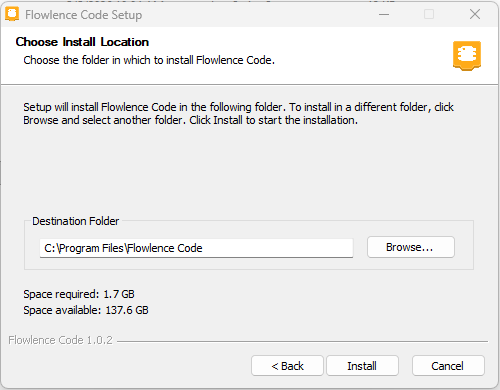
1.7 GB needed
Flowlence Code bundles compilers, drivers, firmware, and sensor extensions, which is why the install is around 1.7 GB. You only need this much space once; the installer doesn't keep growing as you use the app.
Step 4 · Wait for installation
The installer copies Flowlence Code, the block editor, the ESP32 toolchain (compilers), sensor extensions, and USB drivers. This can take several minutes, especially the first time, because the full kit is large.
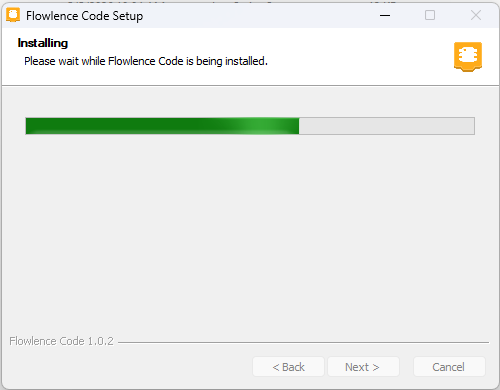
Step 5 · Finish and launch
When the installer completes, leave Run Flowlence Code ticked and click Finish.
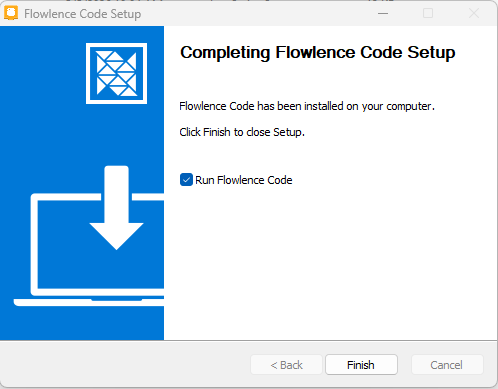
Step 6 · Update sensor extensions (one-time)
The first time Flowlence Code opens, it will check for the latest sensor blocks (LED, DHT11, soil moisture, etc.). If a newer version is available, you'll see a prompt like this:
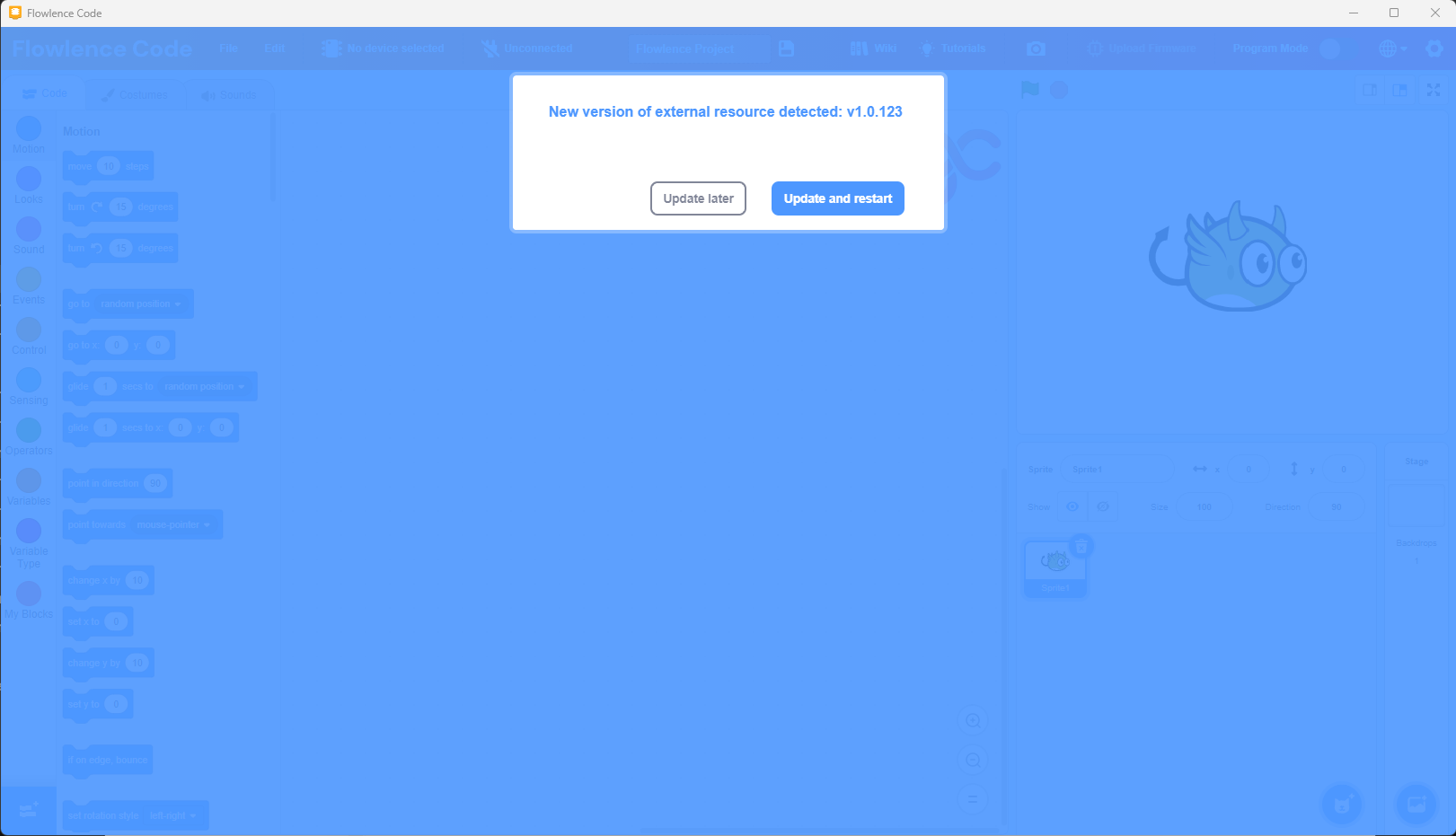
Click Update and restart. The download takes 10–30 seconds depending on your internet speed.
Why is there an update on day one?
Sensor blocks ship separately from the main app so we can add new sensors and fix block icons without you having to re-download the full installer. You'll see the same prompt occasionally as new sensors are added. Always click Update and restart.
Step 7 · You're in
After the restart, Flowlence Code opens to the workspace.
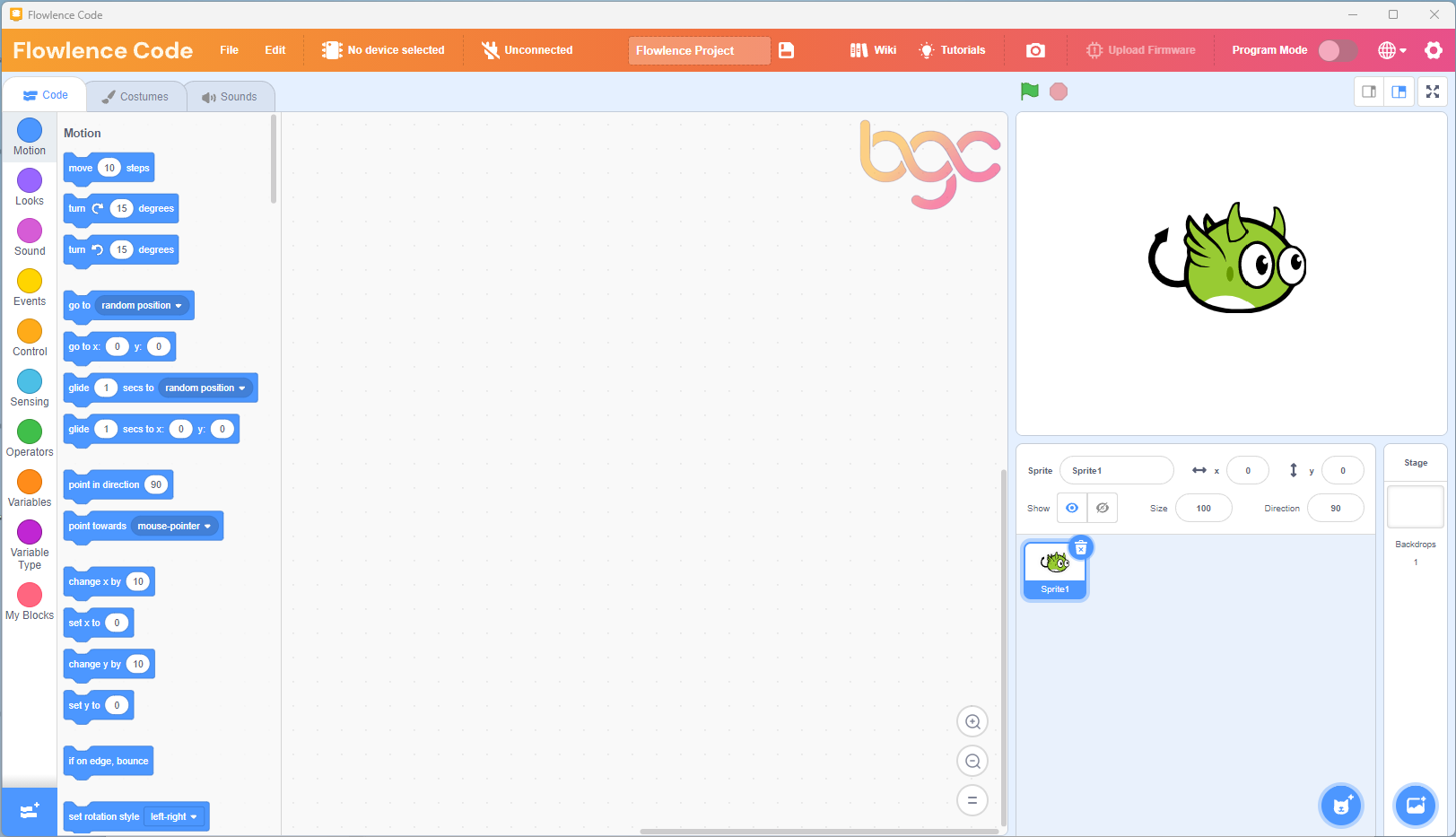
You're ready!
If you see this screen (Flowlence Code's wordmark in the top-left, blocks on the left, and the BGC watermark in the workspace), the installation worked.
Next: Tour the Interface to learn your way around, or jump straight to Your First Program to blink an LED.
If something went wrong
- Installer crashed or was blocked? See Troubleshooting → Flowlence Code won't install.
- Installed but won't open? Try running Flowlence Code as administrator (right-click → Run as administrator) the first time.
- Update prompt won't go away or hangs at 17%? Click Update later, close Flowlence Code, then reopen it and try again.